Approval Link
Keep client approvals with the quote or proof version they reviewed.
See what you sent and which version received a response. Approval Link keeps revisions, client decisions, and work progress together for each request.
Create an account to send requests. Clients review their private link without signing in.
FROM REVISION TO RECORD
Prepare the work.
Get a reply.
Know what comes next.
For work that needs a client’s review of a quote or proof. When the version changes, keep the response connected to what they saw.
-
Prepare a quote or proof version
Draft the request and check the version you plan to send. If the client requests changes, prepare a new version while keeping the previous one.
-
Send the client a review link
Check the recipient and content before sending. The client opens the link to review the quote or proof and respond.
-
Keep the reply with its version
See approvals, requested changes, and the version each response refers to. Previous versions and replies remain part of the request.
-
Follow progress after approval
Update work progress and notify the client. Export a completed approval record as a PDF to refer to later.
A REVISED QUOTE
Reconfirm the quote when the job changes.
Put changes from email or messages into a revised quote. Keep the original work, add the agreed change, then review the recipient and version before sending. Keep the client’s reply with the version reviewed.
A synthetic demonstration with a fictional repair quote and no payment. Screens are in English. Quote amounts are examples, not product subscription prices.
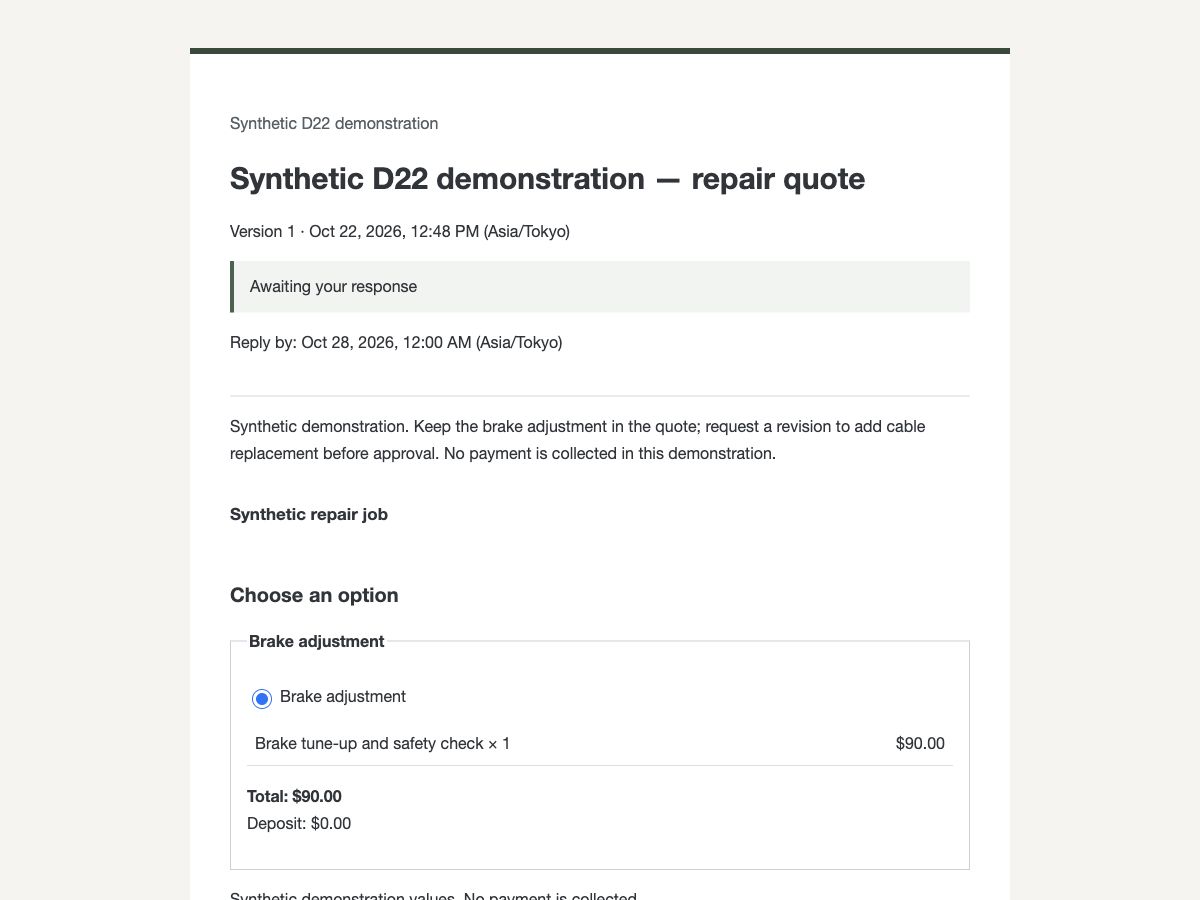
Send version 1 for review
Send the $90 repair quote and wait for the client’s response.
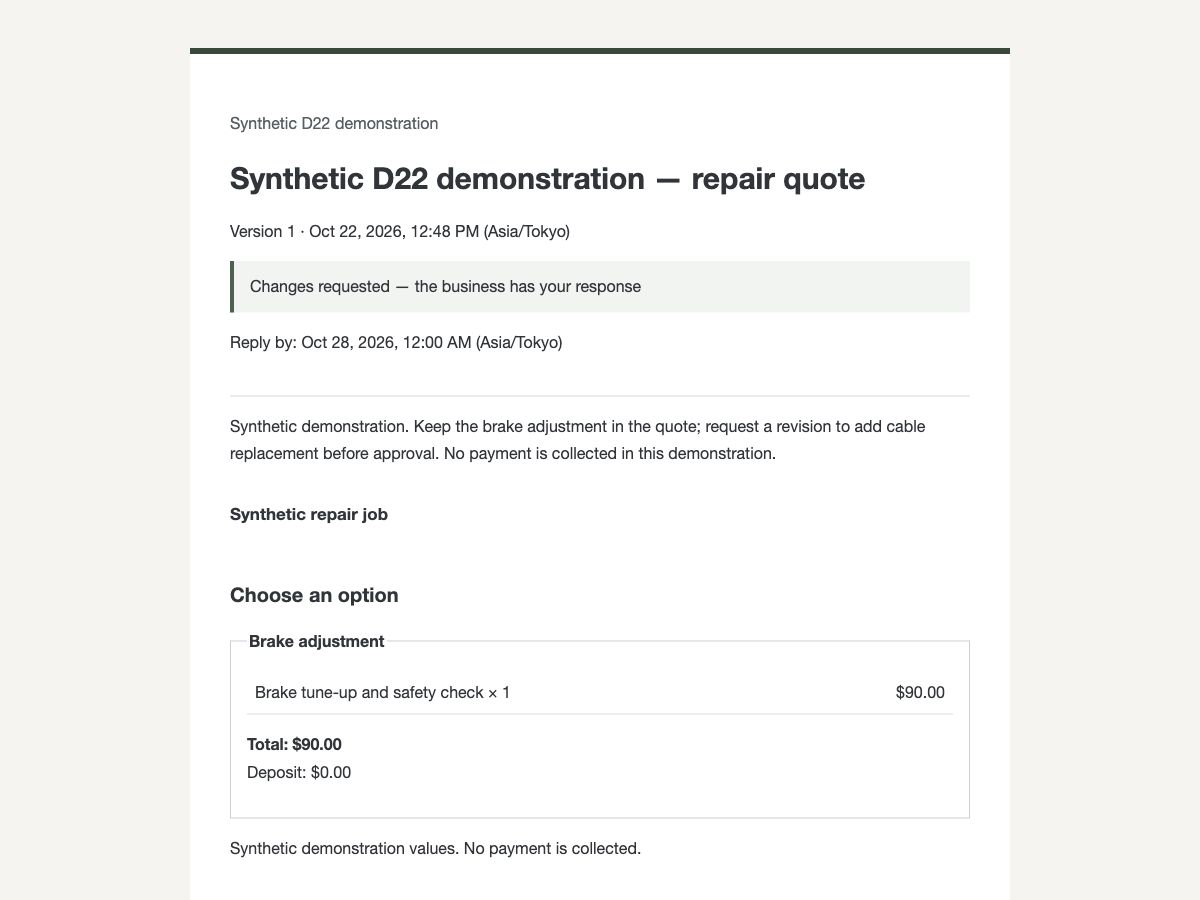
Receive a request for changes
Keep the original work and put the requested addition into a revised quote.
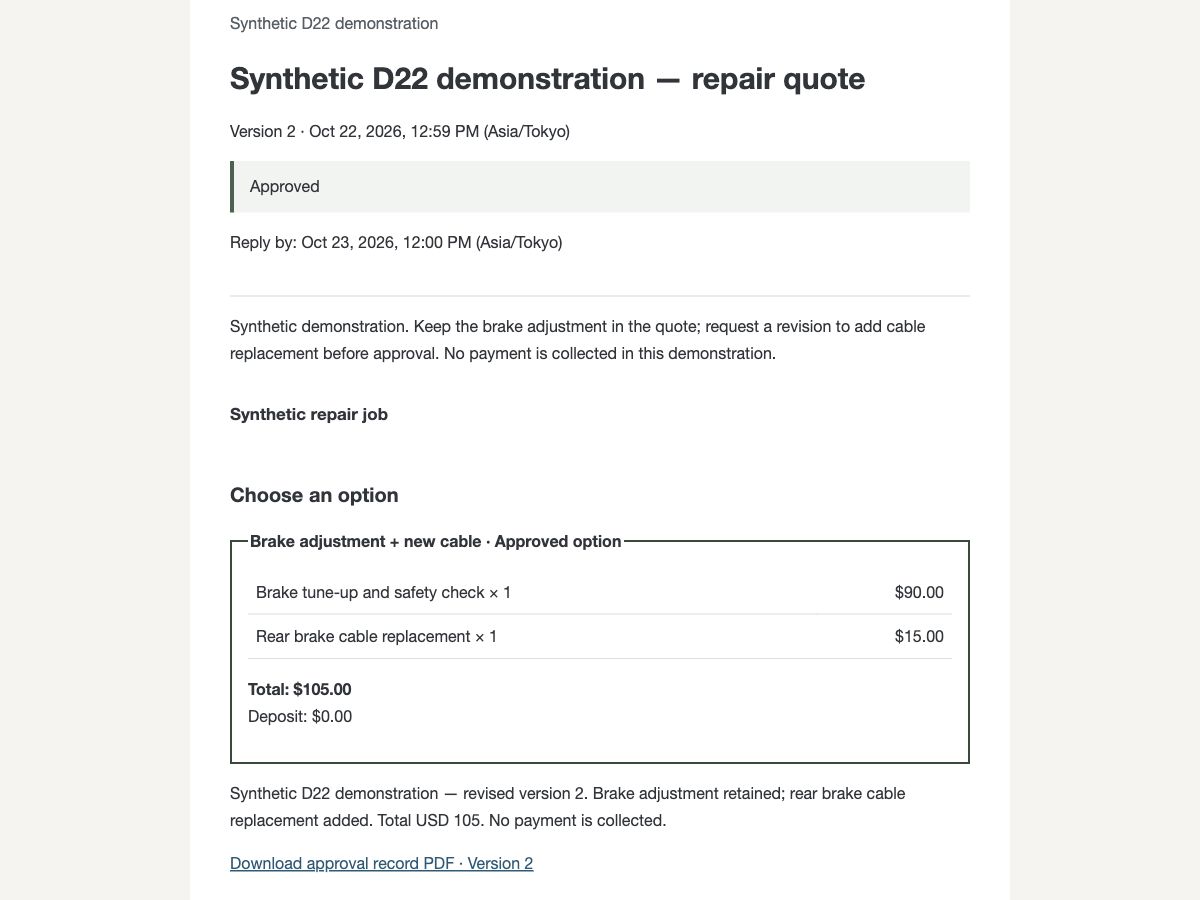
Keep the approval and PDF record
Version 2 includes the addition for $105. The approved version has a PDF record to download.
START WITH YOUR WORKSPACE
Begin with one request.
Sign in by email, then set your business name and customer language. Create a request in your workspace, review it, and send it when it is ready.
Start with the Free planAn account is required. See the app for current plans, features, and prices.
CONNECT WITH MCP
Use your MCP client, too.
Connect an MCP-compatible client to create review requests, check responses, and retrieve PDF records. Public tool definitions can be viewed without signing in. Running tools requires signing in and granting access.
- MCP connection URL
https://approval-link-account.kurodalab.com/mcp